
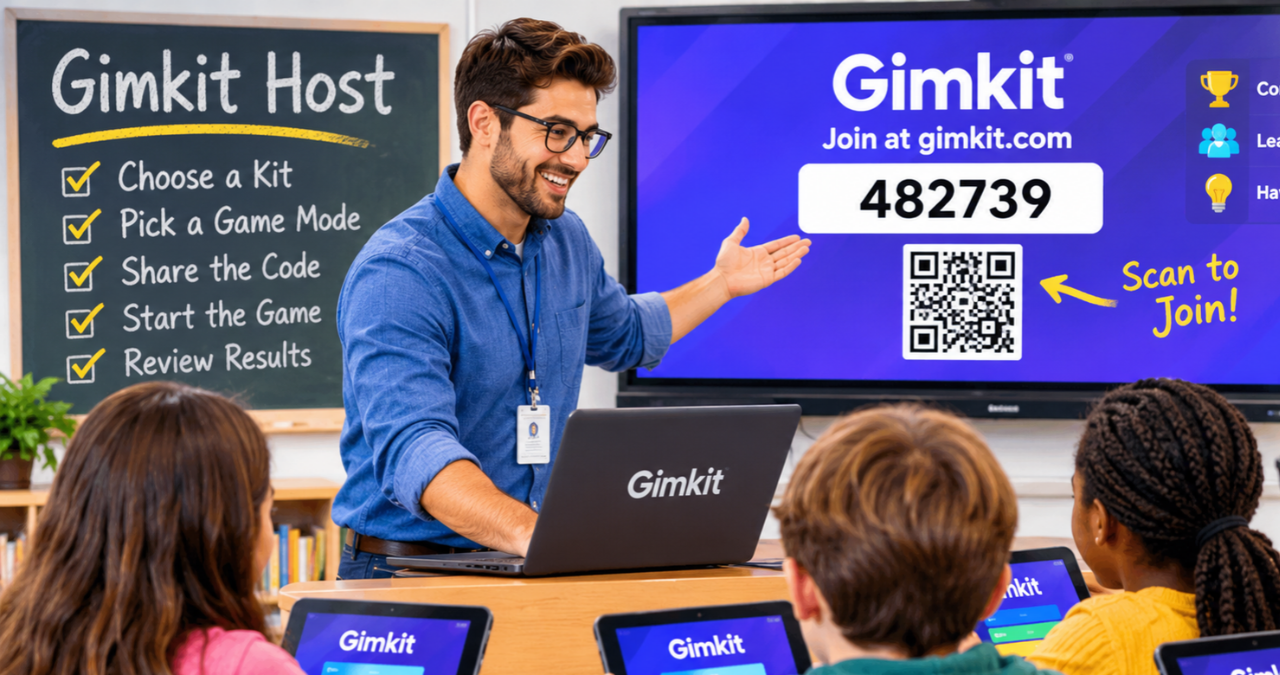
Gimkit host is a useful term for teachers, educators, and anyone who wants to run an interactive learning game through Gimkit. Instead of simply asking students to answer questions on a worksheet, a host can turn review time into an exciting activity where students answer questions, make decisions, compete, collaborate, and learn at the same time.
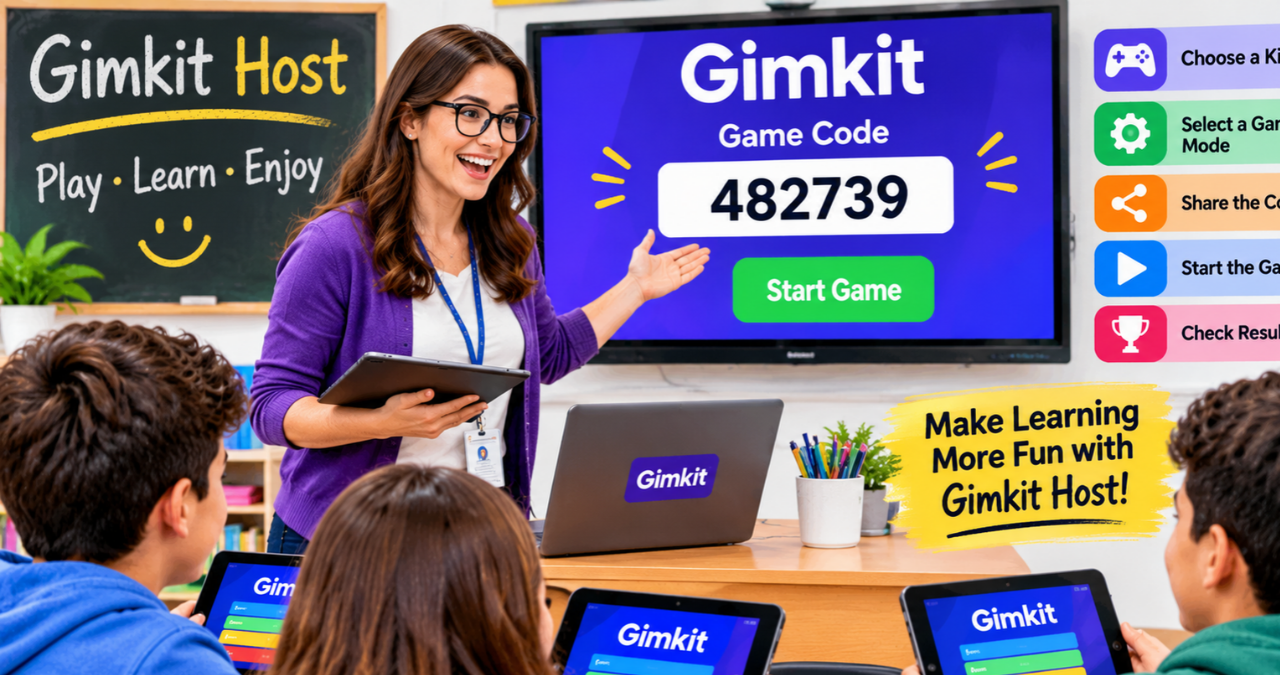
Gimkit is designed around game-based learning. A teacher can choose a kit, select a game mode, adjust settings, share a game code or join link, and then start the activity. According to Gimkit’s official help documentation, hosting a live game involves selecting a kit, choosing a game mode, setting game options, sharing the joining information, and starting the game.
For a teacher, the role of a host is more than simply pressing a button. A good host prepares the learning activity, chooses an appropriate game style, watches student participation, manages the game, and reviews the results afterward. When used thoughtfully, Gimkit can make classroom review feel less like a routine task and more like an experience students want to participate in.
What Is a Gimkit Host?
A Gimkit host is the person who starts and manages a live Gimkit game. In most classroom situations, this person is the teacher or instructor. The host controls the setup before the game begins and has several controls available while the activity is running.
The host usually begins with an existing kit. A kit contains the questions and answers students will use during the activity. From the dashboard, the host can choose Play Live and then browse available game modes. Gimkit’s Mode Picker allows hosts to explore different modes and see descriptions that can help them select an activity that matches their goals.
Being a host also means making decisions before students enter the game. For example, the host may decide whether students can join late, whether to connect a class, which game goals to use, and whether to use a nickname generator. These options can vary depending on the selected game mode.
In short, the host is the person behind the learning experience. The students may see an exciting game, but the host is the one making sure that the game serves a useful educational purpose.
Why the Gimkit Host Role Matters
Game-based learning can create energy in a classroom, but good preparation still matters. A host who chooses a game randomly may end up with an activity that is too difficult, too competitive, too long, or simply unsuitable for the lesson.
An experienced gimkit host thinks about the learning goal first. Is the class reviewing vocabulary? Practicing mathematics? Checking understanding after a lesson? Preparing for a test? Or simply doing a short knowledge check?
Once the goal is clear, the host can select a kit and game mode that supports it.
A strong host also pays attention to the classroom environment. Some groups enjoy competition, while others respond better to teamwork or calmer activities. Gimkit provides different game modes so teachers can select experiences that fit their students and desired outcomes.
This is where thoughtful hosting makes a real difference. The technology provides the tools, but the teacher provides the direction.
How to Become a Gimkit Host
Getting started as a gimkit host is fairly straightforward. The exact screens and available options can change by game mode, but the general process follows a simple path.
Choose a Kit
First, choose the kit you want students to play.
A kit should match the lesson or review activity. If you’re teaching science, for example, your questions might cover vocabulary, concepts, diagrams, or important facts. For language learning, the kit could focus on words, grammar, reading, or definitions.
Before hosting, it’s smart to check the questions yourself. Look for:
- Correct answers
- Clear wording
- Age-appropriate questions
- Useful distractor answers
- Topics that match the lesson
- Questions that aren’t unnecessarily confusing
A few minutes of preparation can prevent a lot of confusion later.
Select Play Live
From the Gimkit dashboard, hosts can select the live-play option for a kit. Gimkit then opens the Mode Picker, where the host can explore available game modes.
This is an important step because the same questions can feel very different depending on the game mode.
Select a Game Mode
Gimkit offers multiple game modes with different styles. Some are fast-paced, some focus more on strategy, and others encourage collaboration or different types of interaction.
Gimkit’s current game-mode resources include traditional experiences as well as 2D modes in which students explore virtual environments using character-like Gims.
The best choice depends on your classroom.
For example:
| Classroom Goal | Helpful Hosting Approach |
|---|---|
| Quick review | Choose a simple, fast mode |
| Team learning | Use a collaborative or team-based mode |
| Test preparation | Focus on accurate question coverage |
| Student engagement | Try an exciting interactive mode |
| Calm practice | Choose a less chaotic game |
| Strategic learning | Select a mode that rewards planning |
| Short lesson activity | Keep the game goal manageable |
The trick is not to choose the most exciting mode every time. Choose the mode that supports the purpose of the lesson.
Setting Up a Gimkit Host Game
After choosing the game mode, the host reaches the game-options stage. These settings allow the teacher to customize the experience.
Gimkit explains that live games can include standard options such as game goals, class connections, late joining, and the Nickname Generator. Additional settings may depend on the selected mode.
Game Goals
A game goal determines what the game is working toward. Depending on the mode, goals may involve factors such as time, cash, investigations, difficulty, or questions answered.
Think about the amount of classroom time available before selecting the goal.
A five-minute review shouldn’t accidentally become a long activity that takes over the lesson. Likewise, an important revision session may need enough time for students to answer a meaningful number of questions.
Join in Late
The host can control whether students are allowed to join after the game begins. Gimkit notes that live games can be configured to allow or prevent late joining.
Allowing late joining can be useful when a student has a technical problem or arrives late. On the other hand, disabling it may make sense when you want tighter control over the game.
Nickname Generator
The Nickname Generator can help simplify classroom management. When enabled, students receive generated names instead of entering their own names. Gimkit describes it as a way to provide safe names automatically during live games.
This can be especially helpful when you want to reduce inappropriate usernames or avoid spending valuable class time checking names.
How Students Join a Gimkit Game
Once the host has prepared the game, students need a way to enter.
Gimkit supports several joining methods. Students can use a game code, a join link, or a QR code. The official hosting guide explains that students can visit Gimkit’s join page and enter the game code, while a direct join link can also be shared.
QR codes can make the process even easier. While hosting, the host can hover over the game code to display a QR code. Students can scan it with a suitable device and quickly access the game.
This is particularly useful in classrooms where students already have tablets or phones available.
A practical host might display the joining information on a classroom screen while students get ready. Once everyone is inside the lobby, the host can check the participant list before beginning.
Managing the Gimkit Lobby
The lobby is the waiting area before the live game starts.
Don’t rush through this stage. A good gimkit host can use the lobby to make sure students have joined correctly and that there are no obvious problems.
The host can look at participant names and, where appropriate, remove players who shouldn’t be in the game or who are using inappropriate names. Gimkit’s hosting guidance specifically explains that hosts can manage players from the lobby and during the game.
Before starting, consider checking:
- Have most students joined?
- Are the names recognizable?
- Is everyone using the correct device?
- Does the selected mode work for the group?
- Are students clear about the rules?
- Is the game screen visible to the class?
A simple explanation can prevent many problems.
For example, tell students what the learning goal is, how questions affect the game, and what they should do if their device disconnects.
Starting the Live Game
When you’re ready, start the game.
The exact location of the Start Game button can depend on the game mode. Once the host starts the activity, students move from the lobby into the game.
This is where the teacher’s classroom-management skills become important.
Students may become excited when the game begins. That’s great, but excitement needs direction. Remind students that the purpose is still learning.
A useful rule is simple:
Play hard, but learn harder.
Students should focus on answering questions rather than clicking randomly just to move up a leaderboard.
Understanding Gimkit Host Controls
The host has several controls during a live game. These controls can differ depending on the game mode.
In 2D modes, hosts can play as a participant or act as a spectator. As a spectator, the host can move between players, view the leaderboard, check players, control sound, and end the game.
These tools give teachers a better view of what’s happening.
For example, if one student is struggling, the teacher may notice the issue and provide support. If the classroom becomes too noisy, the host can manage the game without abandoning the activity.
The host can also display the leaderboard when appropriate.
However, remember that leaderboards aren’t always helpful for every learner. Some students thrive on competition, while others may feel uncomfortable when their performance is highly visible. Good hosting means knowing your group.
Hosting 2D Gimkit Games
2D game modes add another layer to the Gimkit experience. In these modes, students explore virtual worlds with Gims and may interact with the environment in different ways.
For the host, these modes can require a little more preparation.
The teacher should understand the basic goal before asking students to play. If the host doesn’t know what students are supposed to do, the first few minutes can become confusing.
2D modes also provide game-balance options. These settings can affect the relationship between answering questions and progressing through gameplay. Gimkit explains that hosts can customize elements such as the rewards students receive for answering questions in certain 2D modes.
That feature can be valuable for educational purposes.
If you want students to focus more heavily on questions, adjust the game balance so that correct answers play a stronger role in progress. If the class needs more freedom to explore, a different balance may be appropriate.
How a Gimkit Host Keeps the Game Educational
It’s easy for students to become focused on winning. That’s not necessarily a bad thing, but the educational goal should remain at the center.
A skilled gimkit host can keep learning visible throughout the activity.
Connect the Game to the Lesson
Before starting, explain why students are playing.
Instead of saying, “We’re playing Gimkit,” say something like:
“Today we’re using Gimkit to review the main ideas from our science lesson.”
That small difference gives the activity a clear purpose.
Encourage Thoughtful Answers
Students shouldn’t feel that speed is everything.
Encourage them to read the entire question before answering. If the game rewards quick decisions, remind students that accuracy matters too.
Pause When Needed
If many students miss the same question, that’s valuable information.
The teacher can pause the activity, explain the concept, and then continue.
This turns an incorrect answer into a learning opportunity rather than simply a lost point.
Tips for Better Gimkit Hosting
A great host doesn’t need complicated tricks. Good preparation and simple classroom habits often work best.
Here are some practical tips:
- Test the kit before class.
- Read the questions ahead of time.
- Choose a game mode that matches the lesson.
- Keep the first game relatively simple.
- Explain the rules before starting.
- Display the game code clearly.
- Check the lobby before starting.
- Monitor student participation.
- Watch for repeated misunderstandings.
- Use game settings to control the pace.
- Don’t let competition overshadow learning.
- Review the results after the game.
Another useful tip is to have a backup plan.
Technology can sometimes misbehave. A slow internet connection, a device problem, or an unexpected login issue can interrupt a lesson. Having a traditional review activity ready can save the day.
As the saying goes, it’s better to have a plan B and not need it than to need one and not have it.
Using Gimkit Game Reports
One of the most useful parts of hosting is what happens after the game ends.
Gimkit provides reports for kits that the host owns. These reports can include class and individual data, and the platform allows reports to be viewed after a game and saved as a PDF.
Reports can help teachers understand what students learned and where they struggled.
Gimkit describes several report views, including:
- Student Overview
- General Overview
- Question Breakdown
This information can help teachers make better decisions about future lessons.
For example, imagine that most students answer a particular question incorrectly. That may indicate that the concept needs to be retaught.
On the other hand, if nearly everyone answers correctly, the teacher may decide that the class is ready to move forward.
This is where game-based learning becomes more than entertainment. The results can provide useful feedback for teaching.
Common Mistakes a Gimkit Host Should Avoid
Even experienced teachers can make small mistakes when hosting a live game.
Choosing a Mode Without Testing It
A game mode might look interesting but work poorly for your specific group. Read its description and understand the basic gameplay before using it.
Making the Game Too Long
Long activities can cause students to lose focus. Keep the game length suitable for the lesson.
Ignoring the Questions
The game mode may be exciting, but the questions are still the educational foundation. Poorly written questions can weaken the whole activity.
Forgetting Classroom Management
Excitement can quickly turn into noise. Establish expectations before starting.
Focusing Only on the Winner
The student with the highest score isn’t necessarily the student who learned the most. Look at overall performance and question-level results.
Not Reviewing the Results
Finishing the game isn’t always the end of the learning process. Reports can help identify areas that need more attention.
Gimkit Host and Student Engagement
One of the strongest reasons to use Gimkit is engagement.
Students often respond differently when a review activity includes goals, challenges, progress, and immediate feedback. The game structure can encourage participation from students who might remain quiet during a traditional question-and-answer session.
Still, engagement shouldn’t be confused with learning.
A student can be highly engaged with a game without understanding the subject. That’s why the teacher’s role remains essential.
The gimkit host should connect the game to meaningful instruction. The activity should reinforce concepts, reveal misunderstandings, and encourage students to think.
When those elements come together, game-based learning becomes much more powerful.
Using Team-Based and Collaborative Activities
Not every classroom needs individual competition.
Team-oriented game modes can give students opportunities to communicate and work toward a shared goal. This can be helpful for classes where collaboration is an important learning objective.
Team activities can also reduce some of the pressure associated with individual rankings.
A host should think about the personality of the group. If students enjoy cooperation, a collaborative activity may produce better results than a highly competitive game.
The key is flexibility.
There isn’t one perfect Gimkit mode for every classroom. The right choice depends on the students, lesson, subject, time, and desired outcome.
How Teachers Can Improve Over Time
Hosting becomes easier with experience.
After several games, teachers often learn which modes work well for particular groups. They also learn how long their students can stay focused, which questions cause problems, and which settings create the best classroom balance.
Keep simple notes after each activity.
You might record:
- Which game mode worked well
- Which questions caused confusion
- How long the game lasted
- Whether students stayed focused
- Whether the class preferred teams or individual play
- Which concepts need more review
Over time, these observations can make future sessions smoother.
A good host doesn’t have to be perfect. Instead, the host should be willing to learn from each game.
Gimkit Host: A Simple Classroom Workflow
The following workflow can make live sessions easier to manage:
| Stage | Host Action | Main Purpose |
|---|---|---|
| Preparation | Review the kit | Check educational quality |
| Selection | Choose a game mode | Match gameplay to the lesson |
| Setup | Adjust game options | Control the experience |
| Joining | Share code, link, or QR code | Bring students into the lobby |
| Check | Review players | Prevent joining problems |
| Start | Begin the game | Launch the activity |
| Monitor | Watch progress | Support learning and engagement |
| Adjust | Use available controls | Manage the live session |
| Finish | End naturally or manually | Complete the activity |
| Review | Examine reports | Identify learning needs |
This workflow is simple, but it covers the major responsibilities of a host.
Is Gimkit Good for Teachers?
Gimkit can be a useful classroom tool when it is used with a clear educational purpose.
Its biggest advantage is that it combines question-based learning with interactive game mechanics. Instead of separating learning and fun completely, it brings them together.
The platform also gives teachers control over important parts of a live session, including game selection, settings, joining options, player management, and post-game reports.
However, Gimkit shouldn’t replace every teaching method.
Teachers still need direct instruction, discussion, reading, writing, projects, practical activities, and other forms of assessment. Gimkit works best as one tool within a larger teaching strategy.
Think of it as a helpful ingredient rather than the entire recipe.
Who Can Benefit From Being a Gimkit Host?
Although Gimkit is strongly associated with classroom use, the basic idea can be useful for different learning situations.
Potential users include:
- School teachers
- Tutors
- Educational trainers
- Homeschool educators
- Study groups
- Workshop leaders
- Review-session instructors
The activity can be adapted to different subjects and age groups as long as the questions and game settings are appropriate.
A teacher doesn’t need to be a technology expert to begin. The most important skills are planning, communication, and understanding what students need to learn.
Final Thoughts on Becoming a Better Gimkit Host
Being a gimkit host is about more than starting an online game. The host creates the environment in which students review information, make choices, respond to questions, and receive feedback.
The strongest approach is simple: start with the learning objective, select a suitable kit, choose a game mode that fits the group, configure the settings carefully, and monitor the experience while students play. Afterward, use available reports to understand what students know and what still needs attention.
With practice, hosting can become a smooth part of classroom instruction. Whether you’re introducing students to game-based learning for the first time or looking for a fresh way to review familiar material, Gimkit offers flexible options that can make learning more active and enjoyable.
Ultimately, the technology is only part of the equation. A thoughtful gimkit host brings the lesson, students, questions, and game experience together in a way that keeps learning at the heart of the activity.
You may also read
Callista Gingrich: Biography, Career, Diplomacy, Books, and Public Life